Submitting your assignment (Lab)
- Go to your GitHub profile, Edit your profile, to add your name and upload an image of yourself.
- Go to the students: IT2045C students over the years Repository in the Class organization.
Copy the Git URL to the repository
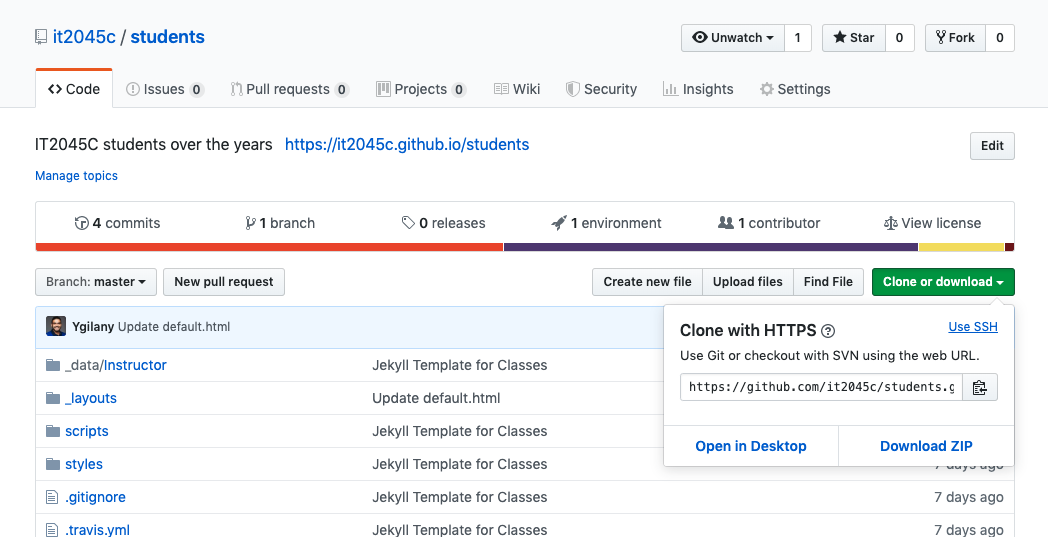
- Clone down the repository to your local computer.
- Method 1: Using GitHub Desktop
- We want to clone an existing repository. So you can either:
- select the first option on the left
Clone a Repository from the Internet… - OR, you can go to the menu bar and select
File->Clone Repository...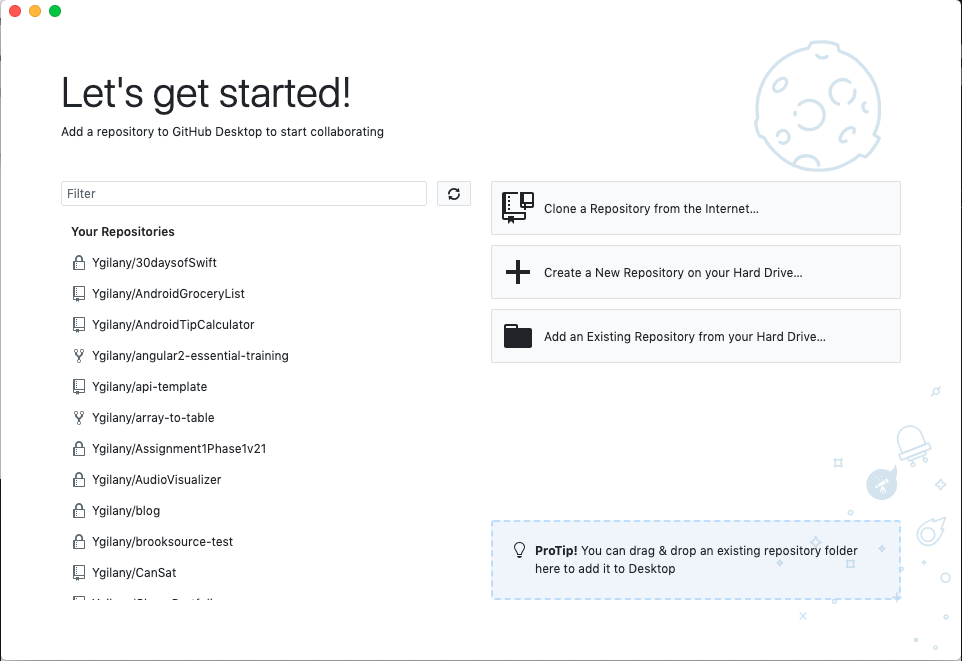
- select the first option on the left
- Go to the URL tab and in the first text field, paste in the git URL to the repository.
- The Second field is where the project will be downloaded to. Once you’re done, click clone.
- We want to clone an existing repository. So you can either:
- Method 2: Using the Command line
- using the command line, navigate to where you want to clone the project. Using the
cdcommand. i.e.:cd path/to/where/you/want/to/save/the/project - Clone the project:
git clone https://github.com/it2045c/students.git- you may be prompted to login with your username and password
- using the command line, navigate to where you want to clone the project. Using the
- Method 1: Using GitHub Desktop
- Create a branch off of master.
- Method 1: Using GitHub Desktop
- Create a
New Branch 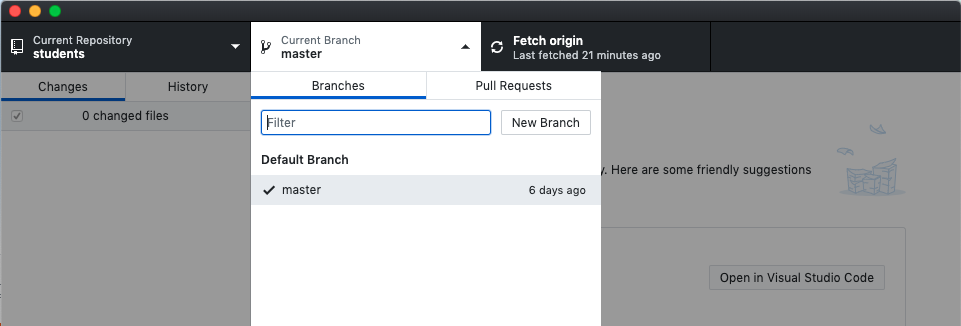
- to ensure uniqueness, name the branch with your 6+2
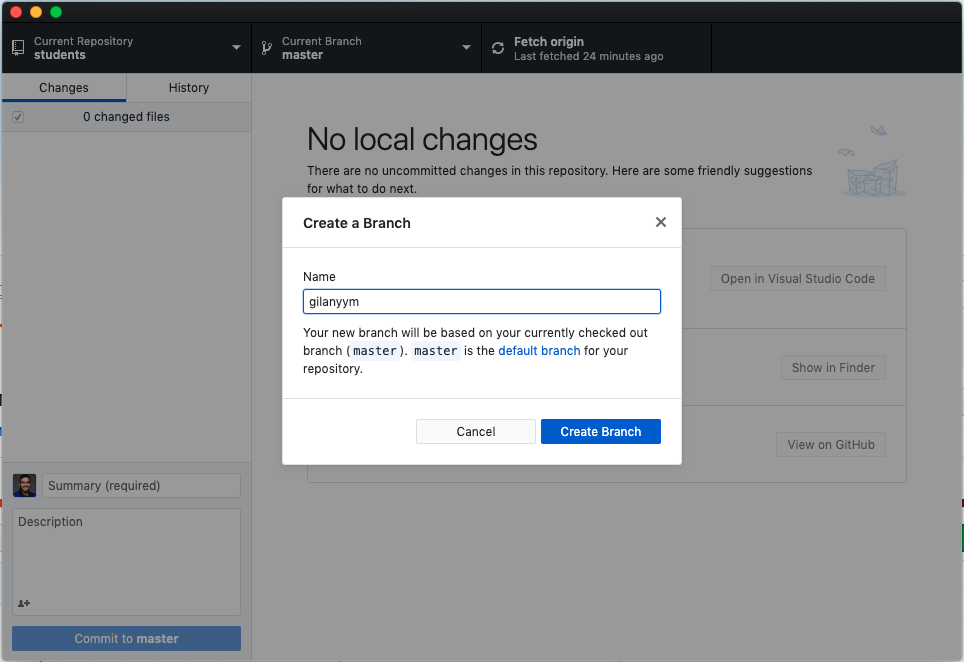
- Create a
- Method 2: Using the Command line
- run the following command
git checkout -b gilanyym- instead of
gilanyymtype in your 6+2.
- instead of
- run the following command
- Method 1: Using GitHub Desktop
- Create a file under
_data/Spring20. The file should be named asGITHUB_USERNAME.jsonfor example:Ygilany.json - Introduce yourself by modifying the file using any Text Editor of your choice
- use this Emoji cheat sheet to select an emoji. (First line of the example file below)
- type in an introduction message in the introduction line
- list 2-4 achievements you’ve accomplished recently that you’d like to share with the class.
- Share at least your LinkedIn profile page in the links section.
{
  "emoji": ":smirk_cat:",
  "role": "Student",
  "introduction": "I'm excited to learn about you all!",
  "achievements": [
      "achievement1",
      "achievement2"
  ],
  "links": {
      "site": "LINK_TO_YOUR_WEBSITE",
      "linkedin": "LINK_TO_YOUR_LINKEDIN_PROFILE",
      "facebook": "LINK_TO_YOUR_FACEBOOK_PROFILE",
      "twitter": "LINK_TO_YOUR_TWITTER_PROFILE",
  }
}
- on GitHub Desktop, you should something like this
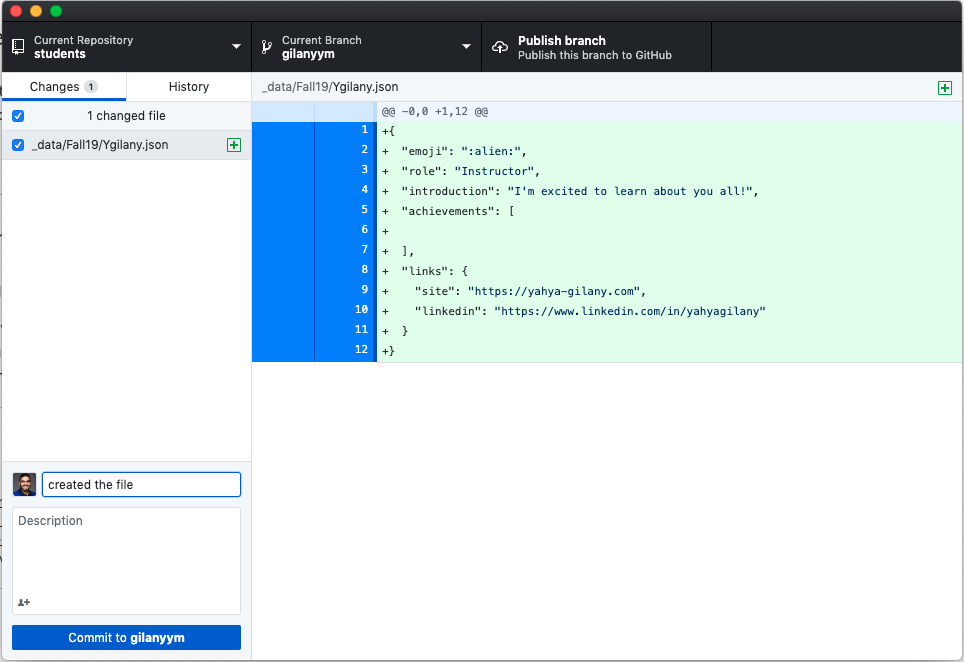
- You can then click the
commitbutton then thepublish branch - Go back to the file and make one change to the file
- Make another commit and push
- Create a pull Request to project
- Method 1: Using GitHub Desktop
- You can click the
Create Pull Requestbutton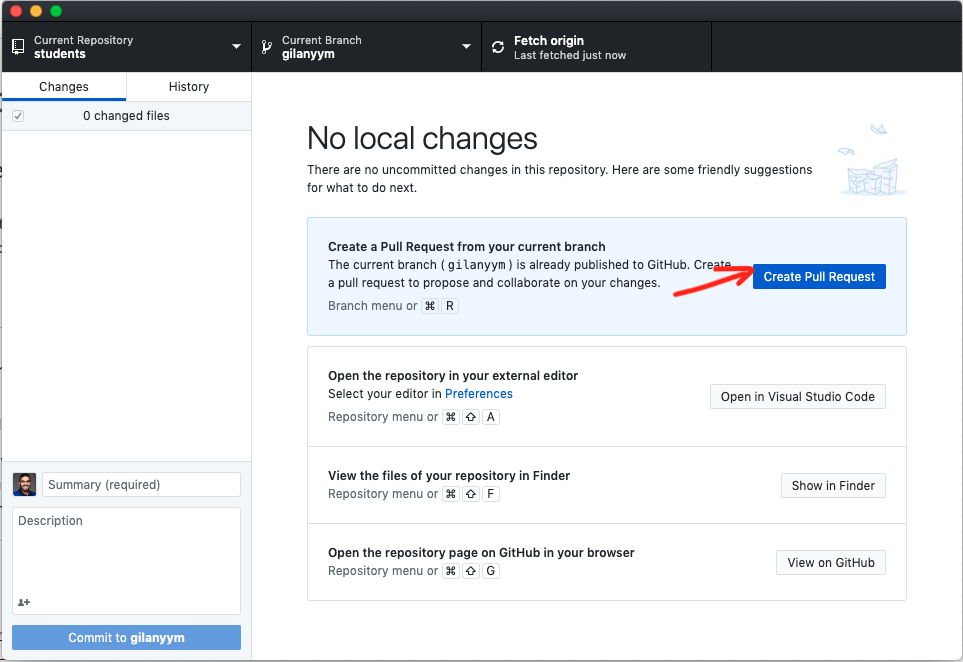
- You can click the
- Method 1: Using GitHub Desktop
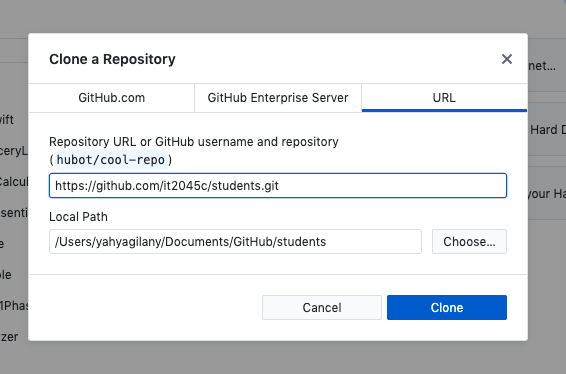
Or through the website 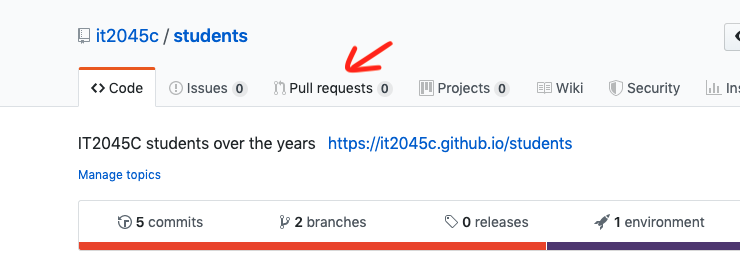
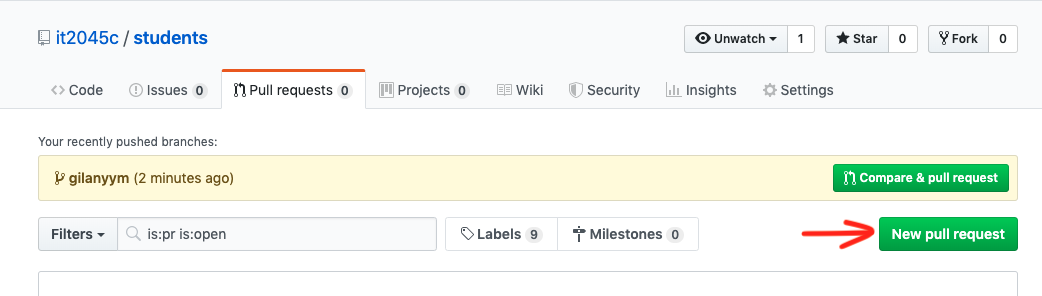
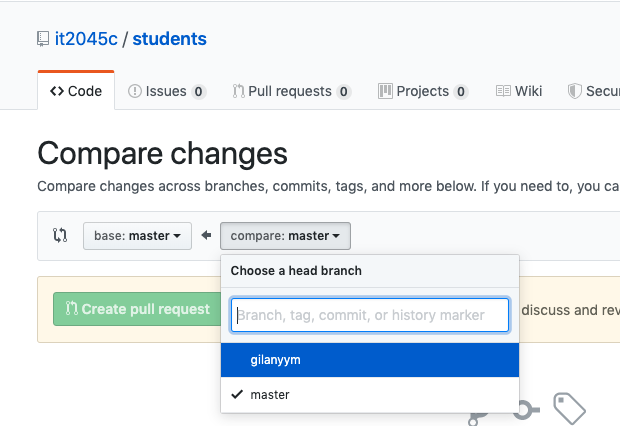
- make sure you select your branch from this list
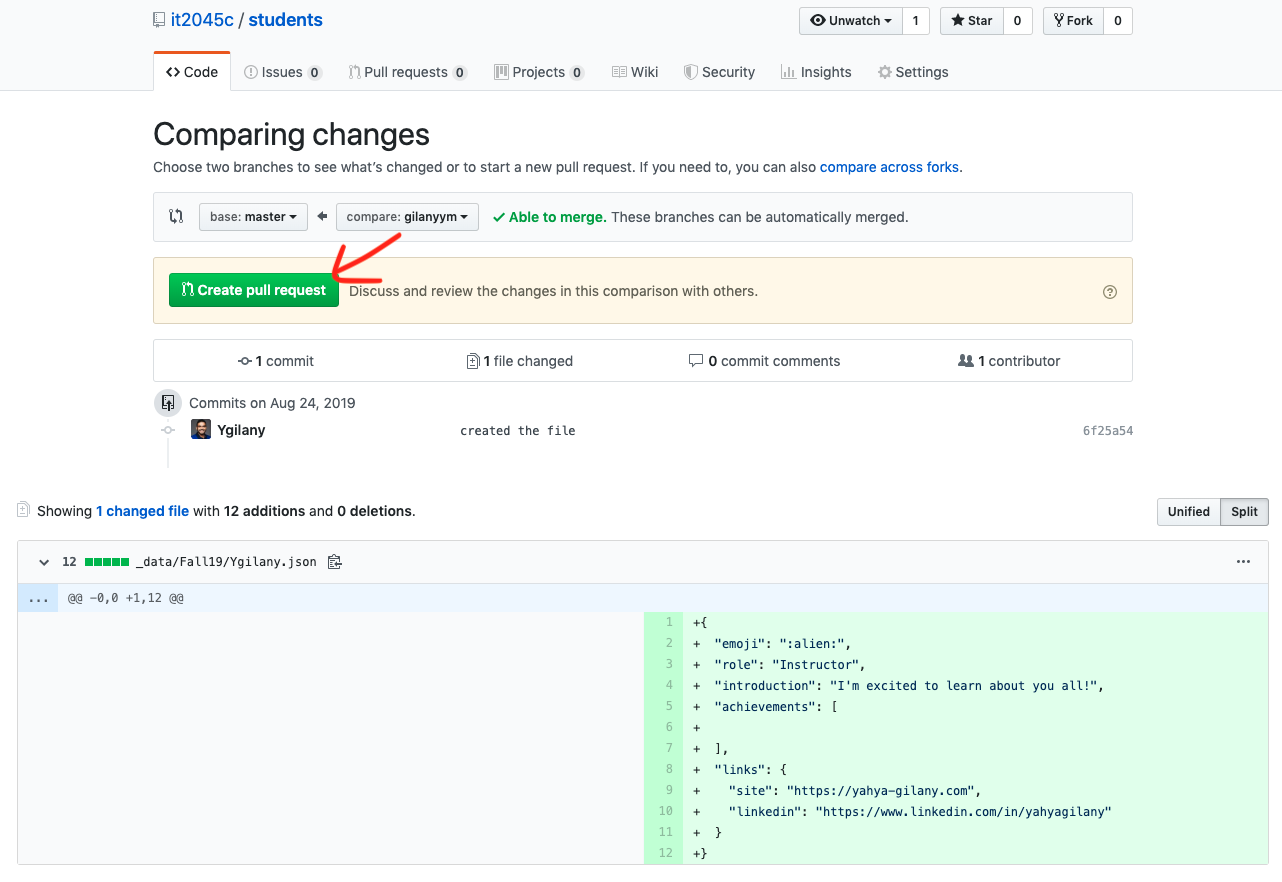
- modify the pull request title, then select
create pull request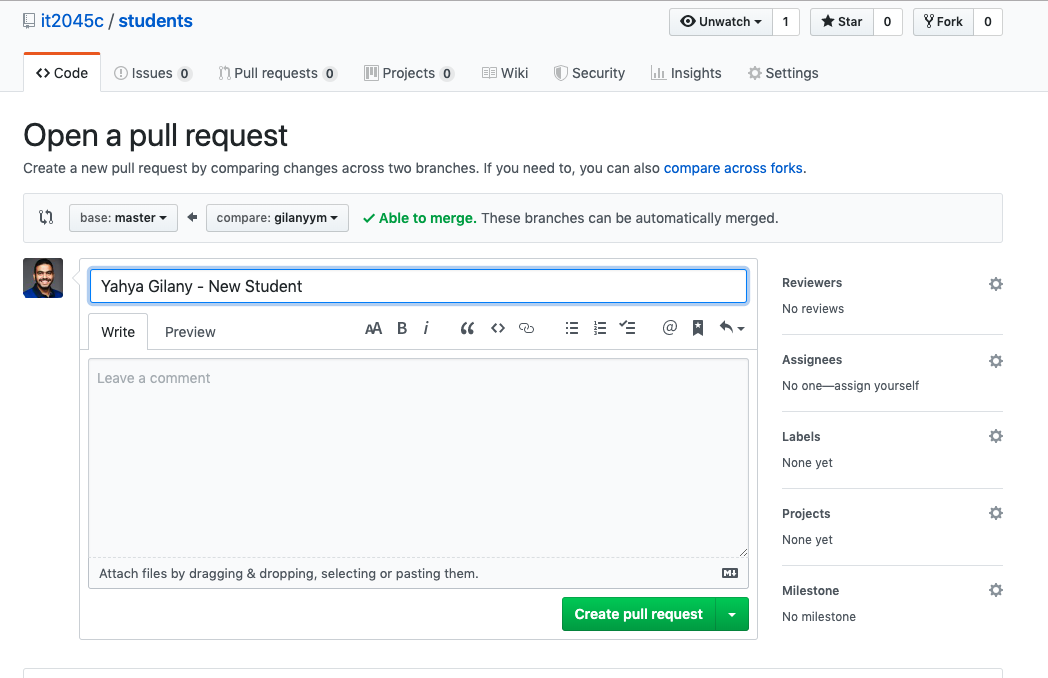
Let me know once you’re done